
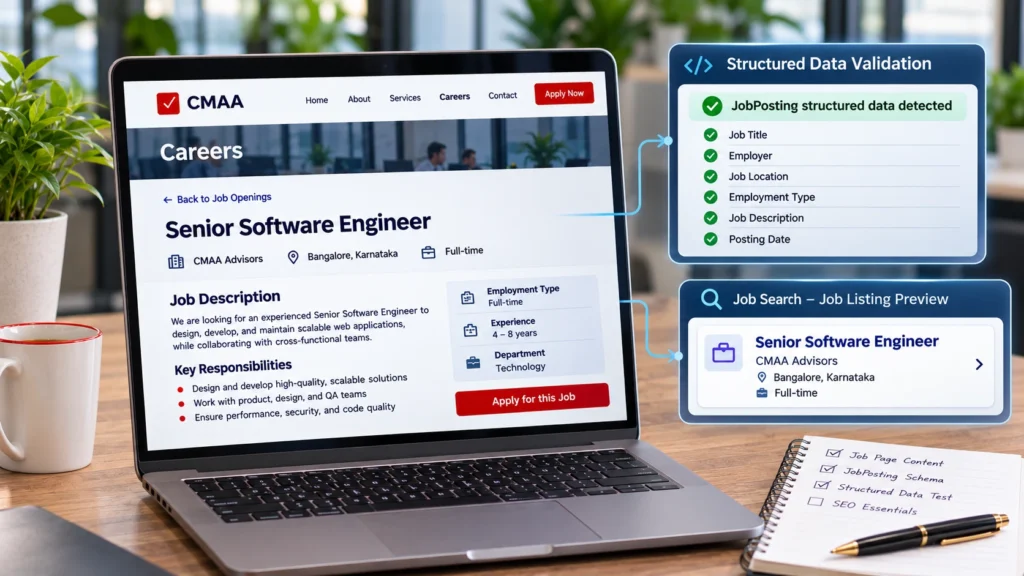
To prepare WordPress job listings for Google for Jobs, give each vacancy its own page, add accurate JobPosting structured data that follows Google’s current requirements, make sure Google can reach and index the page, check the markup with Google’s tools and keep the vacancy details up to date. That makes a page eligible to be considered. It does not guarantee that Google will index it or show it.
This guide is the practical checklist for a Google for Jobs WordPress setup. It builds on two related guides: how Google finds job pages and what JobPosting schema is. Follow the steps in order, and treat Google’s own documentation as the final reference, because its requirements can change.
What Is Google for Jobs?
Google for Jobs is the name commonly used for the job search experience in Google Search. When someone searches for a role, Google may show a panel of job listings with details such as the title, employer, location and employment type, and a way to see the full posting. The details come from job pages that Google has found, indexed and understood.
It is not a separate website where you post jobs, and it is not a guaranteed advertising channel. Your own job page remains the source. Structured data helps Google read the details of that page, and Google decides which jobs to show.
Understand Google’s Job Listing Requirements
Google publishes its requirements in its job posting structured data documentation. The main principles are:
- The page must describe a genuine, individual job vacancy.
- The job details must be visible to visitors and accurate.
- The page must be accessible to Google.
- JobPosting structured data must follow the current specification, including the required properties.
- The markup must match what the page shows.
- Expired jobs must be handled properly.
- The technical and content guidelines must be respected.
Read that page before you build anything. Do not rely on a remembered list or an old article, and note that Google can update the rules.
Create a Dedicated Page for Each Job
Google expects JobPosting data on a page that is dedicated to one job, not on a page that lists several. A careers page that links to open roles is a listing page. Each role needs its own detail page with:
- A clear, unique job title.
- The employer name.
- The full job description.
- The location, or remote working information.
- The employment type.
- Application instructions and a clear way to apply.
- Relevant dates, such as a closing date.
If you are building the careers page and the vacancies from scratch, our guides to building a professional careers page in WordPress and adding job listings to a WordPress website cover the structure.
Add Accurate JobPosting Structured Data
Structured data is most often written as JSON-LD, which Google generally recommends. For JobPosting, the required properties are the title, description, date posted, hiring organization and job location. Other properties, such as employment type, salary and valid through date, are recommended or required in particular cases, as explained in our guide to what JobPosting schema is.
The simplest way to keep the markup honest is to make every value correspond to something visible on the page:
| Visible on the page | Matching JobPosting property |
|---|---|
| Job title heading | title |
| Full description | description |
| Posted date | datePosted |
| Company name | hiringOrganization |
| Work location | jobLocation, including the country |
| Full time or part time | employmentType |
| Closing date | validThrough |
| Stated salary range | baseSalary |
Do not add a salary, location or closing date to the markup that visitors cannot see. If a job is 100% remote, Google has specific properties for that case, and they should only be used for fully remote jobs.
Make Sure Google Can Access the Job Page
A page can exist and still be unavailable to Google. Check these points for a live vacancy:
- The page returns a normal successful response.
- robots.txt does not block it.
- It does not carry a noindex directive.
- It does not need a login to view.
- It is linked from your careers page.
- Its canonical URL points to itself, not to another page.
- Google can render the content.
- It appears in your sitemap.
- It works well on a phone.
Google’s guidance says to be sure the page is not blocked by robots.txt, a noindex tag or a login requirement. Our guide on how Google finds job listings on your website explains each of these in more detail.
Validate JobPosting Structured Data
Check the markup on a live page with Google’s Rich Results Test:
- Open a live job detail page and copy its URL.
- Enter the URL in the Rich Results Test, or paste the code you want to check.
- Confirm that job posting data is detected.
- Read the errors.
- Read the warnings.
- Compare the detected values with the visible page.
- Fix any problems.
- Test again.
Passing the test shows that Google can read the markup. It does not guarantee indexing or a place in Google for Jobs.
Check Indexing With Google Search Console
Search Console shows how Google treats your pages. Add and verify the correct website property, then use the URL Inspection tool on a job page to see its indexing status, the canonical Google selected and whether the page is accessible. Submit a sitemap where it applies, and watch the relevant reports for errors or enhancement issues. Use the current wording in the interface, because labels change.
You can ask Google to recrawl a URL, but that is a request, not a guarantee, and Google says it can take several days after publishing for it to find and crawl a page. For job posting URLs, Google also describes the Indexing API, which it recommends over sitemaps for prompting a crawl sooner, while still recommending a sitemap for the rest of the site. Do not expect a fixed timeline.
Keep Job Listings Accurate and Up to Date
Search results are only as good as the vacancies behind them. Correct changed details, close filled positions, and keep the valid through date and the visible closing date in agreement. Remove or update expired vacancies, and make sure current vacancy lists do not still show closed jobs.
Google says jobs that are no longer open must be expired, and that failing to act in good time may lead to a manual action. Its documented options are to make sure validThrough is filled in and in the past, to remove the page so it returns a 404 or 410 status, or to remove the JobPosting markup. Which suits a given job depends on whether it is permanently closed, replaced by another vacancy or still useful as information, so decide case by case.
Common Reasons WordPress Job Listings May Not Appear
- The page has no JobPosting markup, or the markup is invalid or incomplete.
- The markup does not match the visible page.
- Several jobs are marked up on one page.
- Google cannot crawl the page, or the page is set to noindex.
- The canonical URL points elsewhere.
- The job has expired.
- The job information is thin or misleading.
- Google has chosen not to index or show the page.
The first seven are technical or content problems you can fix. The last is Google’s own decision, and you cannot override it. Telling them apart is the useful part: fix what is in your control, and accept that valid, accessible pages may still not appear.
How to Prepare a WordPress Website for Google for Jobs
Use this checklist as a working order of tasks:
- Choose a WordPress recruitment solution that suits your hiring.
- Create an individual detail page for each job.
- Complete the job information.
- Generate or add valid JobPosting structured data.
- Confirm the markup matches the visible page.
- Make sure the pages can be crawled and indexed.
- Check each canonical URL.
- Include the job URLs in your discovery routes, such as links and a sitemap.
- Validate the structured data.
- Monitor indexing and the Search Console reports.
- Keep the vacancy information current.
Themes and plugins differ, so check the output on a real job page instead of assuming a feature exists. Our overview of making WordPress job listings SEO-friendly covers the surrounding on-page work.
Where CMAA Recruit Fits
CMAA Recruit supports WordPress job publishing and application management (read the overview). Based on the current Free plugin code, each job is a public post type with its own page and a jobs listing page.
On a single job page the plugin outputs JobPosting JSON-LD built from the job’s own details, including the title, the visible description, the date posted, the hiring organization, the employment type, location, a valid through date when you set an expiry date, and salary when it is entered and not hidden.
Some points to check on your own site. The location comes from a free-text field, so enter it as a city followed by a country. A remote work mode is marked as fully remote, so use it only for jobs that are 100% remote.
When an expiry date passes the application form closes, but nothing in the current code unpublishes or noindexes the page, so decide how to handle closed vacancies.
The plugin has no sitemap of its own, so confirm that WordPress or your SEO plugin lists the job pages. It removes duplicate meta descriptions and social tags from other SEO plugins on job pages, but nothing in the current code removes another plugin’s structured data, so check for duplicate JobPosting output.
According to the plugin’s own comparison of plans, Pro adds Instant Indexing using the Google Indexing API and IndexNow. Check the current plan details before you rely on it. CMAA Recruit cannot guarantee eligibility, indexing, rankings or placement in Google for Jobs.
Prepare your WordPress website for structured job publishing
Explore CMAA Recruit and how it supports job publishing and recruitment management through WordPress.
Frequently Asked Questions
How do I get my WordPress job listings on Google for Jobs?
Create an individual page for each vacancy, add accurate JobPosting structured data, make sure Google can crawl and index the pages, validate the markup and keep the vacancies current. That makes the pages eligible, but Google decides what to show.
Is JobPosting schema mandatory for Google for Jobs?
Google says you must include the required properties for your content to be eligible for the job experience, so valid JobPosting markup is part of the requirements.
Does passing the Rich Results Test guarantee eligibility?
No. It checks that Google can read the markup. It does not test every guideline, and it says nothing about indexing or whether the job will be shown.
How long does Google take to show a job listing?
There is no fixed time. Google says it can take several days after publishing for it to find and crawl a page, and showing the job is a separate decision.
Can a WordPress recruitment plugin generate JobPosting schema?
Yes, some can. You should still inspect the generated markup on a live job page and test it, because the result depends on the information you enter and on other plugins.
Why is my job listing not appearing in Google for Jobs?
The markup may be missing, invalid or different from the page, the page may be blocked, noindexed or expired, or Google may simply have chosen not to show it. Check each in turn, starting with the Rich Results Test and URL Inspection.
Final Takeaway
Create useful individual job pages, add accurate structured data, make sure Google can access the pages, validate the markup, monitor indexing and keep vacancy information current. Do that consistently and your jobs are eligible to be considered, but nothing here guarantees that Google will index or show any of them.
Compare WordPress recruitment features for your hiring requirements
Compare the Free and Pro capabilities against your job publishing, application and recruitment workflow requirements.

About CMAA Softwares
CMAA Softwares builds practical software for SMEs and professional firms, grown out of problems solved first inside CMAA Advisors' own payroll, compliance, and recruitment desks. CMAA Recruit is our recruitment ATS plugin for WordPress. Learn more about us.