
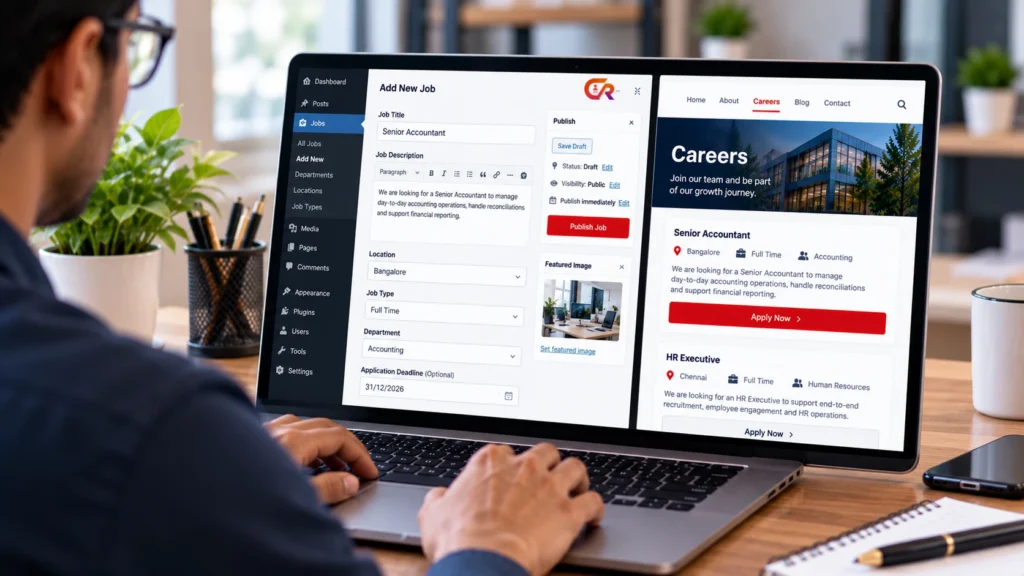
You can add job listings to a WordPress website in two broad ways. You can create each vacancy by hand as a normal WordPress page or post, or you can use a recruitment plugin that manages listings, application forms and centralised records. The right choice depends on how many vacancies you publish, how often they change and whether applications need to be managed inside WordPress.
This guide covers both approaches, how to choose between them and how to keep your listings accurate once they are live. It assumes you already have a WordPress website.
Decide How You Want to Publish Job Listings
To add job listings to a WordPress website well, start by choosing the method. There are three common ways to add jobs to WordPress, and the table compares them.
| Method | Best suited to | Advantages | Limitations |
|---|---|---|---|
| Manual page or post | Occasional vacancies | No extra software and full control of the wording | Repeated manual updates, inconsistent formatting and no application records |
| Job listing plugin | Regular vacancies that need consistent pages | Structured listings that are easier to keep consistent | Features vary by plugin, and applications may be handled separately |
| Recruitment plugin | Companies managing hiring on their own site | Connects publishing with applications and recruiter access | One more tool to configure and maintain |
A manual page may be enough for occasional vacancies. A structured listing system becomes more practical when jobs change often or you need consistent pages and application records. Our comparison of a WordPress job board and a recruitment plugin explains the difference between the two plugin types. Whichever method you pick, give every listing the same structure, so that changing method later does not mean rewriting every job.
Prepare the Job Information
Gather the details before you start, so the listing is complete the first time:
- Job title
- Department or employer
- Location and work arrangement
- Employment type
- Job summary
- Responsibilities
- Essential qualifications
- Preferred skills
- Experience requirements
- Compensation information, where appropriate
- Application instructions
- Closing date, where applicable
Keep a reusable template, even a simple document, so every job is written in the same order. Accurate, consistent information is what lets candidates compare roles and trust the page. Requirements differ by country and employer, so do not assume that any field is legally mandatory everywhere, and check Google’s current documentation instead of guessing which fields it expects.
Method One: Add a Job Manually in WordPress
To publish job openings on a website without extra software, follow these steps:
- Open the WordPress administration area.
- Create a new page or post.
- Add the job title and the description.
- Organise the information with headings and lists.
- Add application instructions or a link to a form.
- Preview the page.
- Publish it and link to it from your careers page.
The exact screens depend on your theme, editor and plugins. WordPress documents the basics in its guide to creating pages. For example, a small firm hiring one office assistant a year can publish a single well-written page and link it from the careers page, with no plugin at all. The manual method has clear limits. Every change is a manual edit, formatting drifts between jobs, tracking applications is difficult and expired vacancies are easy to forget.
Method Two: Use a Job Listing Plugin
A job listing plugin lets you create job listing pages as structured entries instead of free-form pages. The general process is:
- Check the plugin’s compatibility with your WordPress version and its maintenance history.
- Install and activate it.
- Configure its listing settings.
- Create a job.
- Fill in the structured fields it supports.
- Preview the listing.
- Display the jobs on a suitable page.
- Test the listing on mobile.
For example, a company with six or seven open roles at once may find a WordPress job listing plugin easier to maintain than six separate pages, because the listing page can update when a job is added or closed. Plugins are not interchangeable. They differ in the fields, shortcodes, blocks, structured data and filtering they offer, so confirm what a plugin supports before you commit. Our guide to creating a job listing website with WordPress covers how to evaluate the wider setup.
Method Three: Connect Job Listings With Application Management
A recruitment plugin may be a better fit than a basic listing plugin when you want to handle applications inside WordPress. Features to look for include:
- Structured job publishing
- Application forms
- Resume uploads
- Centralised application records
- Recruiter access
- Candidate confirmation
- Candidate status tracking, where supported
Publishing a listing and managing the applications it attracts are related but separate functions. Our guide to what a recruitment ATS is and our article on what an applicant tracking system is and whether you need one explain where simple application collection ends and a recruitment system begins. Where a plugin supports candidate status, tell candidates what to expect, since silence after applying is a common source of frustration.
Create a Useful Careers Page for Your Listings
Candidates need one central place to find current vacancies. A good WordPress careers page includes:
- Clear navigation to the page
- An introductory message
- Job titles with brief summaries
- Location and employment type
- Links to the full job descriptions
- Application actions
- A message for periods with no vacancies
If you have no vacancies at the moment, say so and invite candidates to check back or get in touch, instead of leaving a blank page. Candidates should not have to search through unrelated blog posts to find your openings. Our guide to building a professional careers page in WordPress covers the page in detail, and our article on creating a careers page with job listings and an application form shows how to connect the listings to a form.
Make Job Listings Search-Friendly
Search-friendly listings are well-built, accurate pages:
- Clear job titles
- Descriptive URLs
- Unique, useful job descriptions
- Accurate location and employment information
- Relevant internal links
- Appropriate page titles and meta descriptions
- Correct canonical URLs
- JobPosting structured data on eligible job detail pages
Google explains the requirements in its JobPosting documentation. Structured data does not guarantee indexing or a particular ranking. Job pages must also stay accurate. When a vacancy closes, follow the process your website uses to update or remove it. There is no single indexing or redirect method that is right for every site. Write a unique description for every role, because copying the same text across several jobs makes each page less useful to candidates and to search engines.
Manage Open, Closed, and Expired Listings
A simple routine keeps your job vacancies under control in WordPress:
- Review current vacancies regularly.
- Correct job details that have changed.
- Close filled positions.
- Update closing dates where applicable.
- Remove test listings.
- Avoid duplicate pages for the same role.
- Check links and application forms.
- Keep the careers page current.
If you manage job vacancies in WordPress through a plugin, make the review a regular task, such as a weekly check, so closing dates and filled roles are not forgotten. Outdated vacancies undermine candidate trust and create extra maintenance, because people apply for jobs that no longer exist and someone has to answer them.
Test the Application Process
Before you rely on a listing, check that candidates can actually apply. Do not submit a fake application to a live production site without authorisation. Use a safe test environment or an approved test listing.
- The listing opens correctly.
- The job information is complete.
- The application link works.
- The form submits successfully.
- Resume uploads work, if supported.
- Confirmation messages and emails behave as configured.
- Recruiters can access the submissions.
- The listing is usable on mobile.
- Candidate data is available only to authorised users.
Common Mistakes When Adding Job Listings
These mistakes are common, and most come from treating job listings as a one-off task instead of ongoing maintenance. Each has a straightforward fix:
- Vague titles. Use the title a candidate would search for.
- Incomplete descriptions. Cover responsibilities, requirements and how to apply.
- Listings not linked from the careers page. Add every live job to the page.
- A contact form with no review process. Decide who reviews applications and where they are stored.
- Filled vacancies left active. Close or update them when the role is filled.
- Ignoring mobile users. Test listings and forms on a phone.
- Collecting unnecessary personal information. Ask only for what you need.
- Assuming a plugin guarantees Google for Jobs visibility. Structured data helps Google understand pages but guarantees nothing.
- Running overlapping plugins. Check compatibility before using more than one recruitment or form plugin.
Where CMAA Recruit Fits
CMAA Recruit suits a company that wants to publish job listings on its own WordPress website and receive and manage applications there. It is a WordPress recruitment plugin, so it covers both the listing side and the application side.
The Free version includes a Job Listings custom post type, an Advanced Job Builder, public job listing and job detail pages, an application form with resume upload, a recruiter Applications list, a login-free candidate status page and a confirmation email. CMAA Recruit Pro adds advanced capabilities such as a candidate database, a Kanban workflow, interview scheduling and analytics. Not every business needs these, and they are not part of the Free version.
Publish jobs and manage applications through WordPress
Explore how CMAA Recruit connects job publishing with application handling.
Frequently Asked Questions
How do I add a job vacancy to WordPress?
Create a new page or post with the job details and publish it, or create a job through a job listing or recruitment plugin. Then link it from your careers page.
Can I add job listings without a plugin?
Yes. You can create each vacancy as a normal WordPress page or post. This works for occasional vacancies, but it becomes harder to maintain as the number of jobs grows.
How can candidates apply for jobs on my website?
Through an application form on or linked from the job page. The form can be a general form plugin or one built into a recruitment plugin, and it should be easy to use on a phone.
Can WordPress job listings appear in Google for Jobs?
Eligible job pages with valid JobPosting structured data can appear in Google’s job search experiences, but Google does not guarantee indexing or inclusion. Follow its documentation and keep listings accurate.
How do I remove a filled vacancy?
Close or unpublish the listing, or update it to show that it is no longer available, following the process your website uses. Then update the careers page so it no longer promotes the role.
Do I need an ATS to publish job listings?
No. You can publish listings without one. An ATS or recruitment plugin becomes useful when you need to store and manage applications as they arrive.
Final Takeaway
To add job listings to a WordPress website that stays useful, remember that manual pages work for occasional vacancies. A structured listing or recruitment plugin becomes useful when consistency, applications and ongoing maintenance matter. Whichever method you choose, keep the information accurate, link every live job from your careers page and close vacancies when they are filled.
Choose the right job publishing and recruitment features
Compare the Free and Pro options based on your actual requirements.

About CMAA Softwares
CMAA Softwares builds practical software for SMEs and professional firms, grown out of problems solved first inside CMAA Advisors' own payroll, compliance, and recruitment desks. CMAA Recruit is our recruitment ATS plugin for WordPress. Learn more about us.