
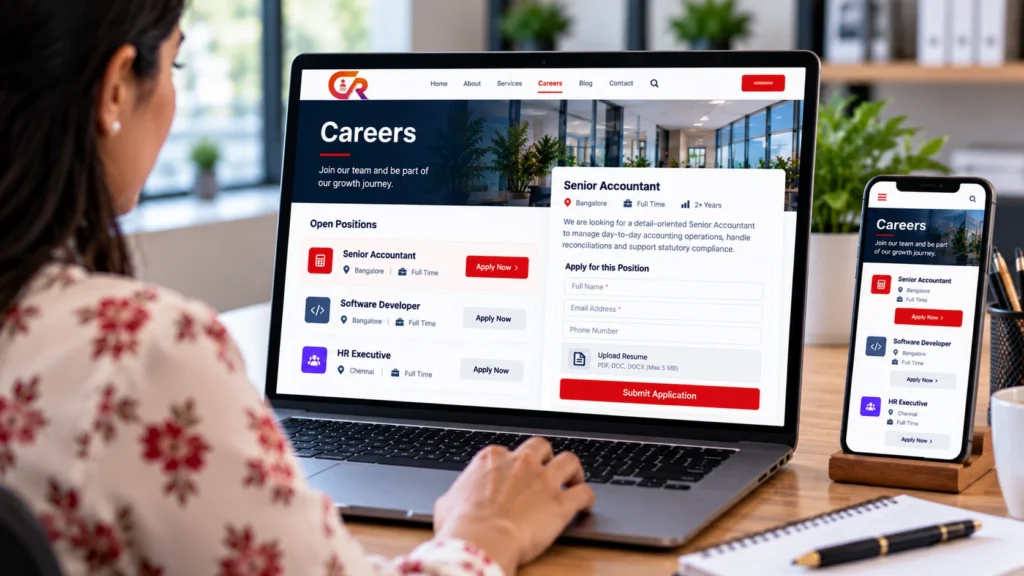
To create a careers page with job listings, you need four things: a page that explains who you are, a place where current vacancies are listed, a full description for each role and a way for candidates to apply. This guide walks through each one in the order you would build them.
WordPress provides the website foundation. The job listings, and the way applications are collected and managed, may need a suitable recruitment plugin, depending on how many roles you publish. The steps below work whichever tools you use.
Plan What Your Careers Page Needs
Before building anything, decide what the page must contain. The core components are:
- A clear heading that tells candidates they are in the right place
- A short introduction to the organisation
- Current job openings
- Links to the full description of each job
- An application form or application route
- Contact and privacy information
- A useful message when there are no open roles
Some of these are essential. Candidates need to see current openings, reach the full details, apply and find your privacy information, and they should see a clear message when nothing is open. The introduction is helpful but optional, and so is extra content about culture or your hiring process. Start with the essentials and add the rest later. A company careers page does not need to be elaborate, and a clear, honest page with accurate listings does more for candidates than a heavily designed one.
Create the Careers Page in WordPress
To create a careers page with job listings in WordPress, start with the page itself:
- Create or identify the page. Add a new page in WordPress, or edit the existing one if you already have a careers page.
- Add it to the navigation. Candidates should reach it from the main menu or the footer.
- Write a concise introduction. Two or three sentences about the organisation are enough.
- Organise the content into clear sections. Use headings for the introduction, current openings and how to apply.
- Check it on mobile. Many candidates will read it on a phone.
- Preview before publishing. Read it as a candidate would.
The exact editing interface depends on your theme, editor and plugins, so you do not need a particular page builder. WordPress documents the basics in its guide to creating pages. If you want a deeper look at the page itself, see our guide to building a professional careers page in WordPress.
Choose How Job Listings Will Appear
There are three ways to show vacancies on the page:
- Maintain job information manually on the page. This works for one or two roles.
- Link to separate job detail pages. Each vacancy gets its own page, which you create and update by hand.
- Use a recruitment plugin to manage job listings. Jobs are created as structured entries and displayed on the careers page for you.
WordPress job listings can be as simple as a list of links or as structured as a plugin-managed catalogue. What matters is that every role is easy to find and kept current. Manually maintained listings become hard to manage as the number of vacancies grows. Formatting drifts, expired jobs stay online and there is no single place to see what is open.
Choose a method based on how many roles you have, how often they change, how you want to handle applications and how technical your team is. Our guide to creating a job listing website with WordPress covers the wider site decisions, and our comparison of a WordPress job board and a recruitment plugin explains the difference between the plugin types.
Write Clear Job Listing Summaries
The careers page should show each vacancy as a short summary that helps candidates decide whether to open the full description. Include:
- Job title
- Location and work arrangement
- Employment type
- A short summary of the role
- The essential requirements
- A link to the full job details
- A clear application action
For example, a summary might read Accounts Assistant, Bengaluru, full time, followed by two sentences on the role and a link to view the job and apply. Format every summary the same way so candidates can compare roles quickly, and avoid vague titles such as Team Member that say nothing about the job. Whether you show salary information, and whether you are required to, depends on your business and local rules, so check what applies to you instead of assuming.
Build Useful Individual Job Description Pages
Each vacancy needs a full description. A candidate should be able to decide whether to apply without contacting you. Cover:
- Responsibilities
- Essential and desirable qualifications
- Experience requirements
- Reporting line or team context, where useful
- Work location and employment terms
- Application instructions
- Closing date, where applicable
Give each job page a stable, descriptive URL and keep the information accurate. A page that changes address or shows outdated details frustrates candidates and makes your careers site harder to maintain.
Add an Application Form
A careers page with application form turns interest into action, so this is the step candidates feel most. An online job application form should be short, clear and trustworthy. You can use a general form plugin or the application form built into a recruitment plugin. Whichever you choose, collect only what you need at this stage:
- Candidate name
- Contact details
- Resume or CV upload, where you need one
- Relevant screening questions
- An optional cover letter
- Privacy information
- A clear submit button and confirmation
Collecting less data is better for candidates and for you, because every extra field is more to protect and more reason to abandon the form. Set sensible file types and size limits, make the form easy to use on a phone, and write clear error messages that say how to fix a problem. Our guide to getting job applications on your website with WordPress covers the application side in more depth.
Connect the Form to Application Management
It helps to know what happens after someone presses submit:
- The submission is received.
- The application is stored, or delivered, through the configured system.
- A recruiter reviews it.
- The candidate receives a confirmation, where one is configured.
- The application moves through the hiring process.
To receive job applications online reliably, decide in advance who is responsible for reviewing them and how quickly candidates will hear back. A contact form that emails each application to a recruiter is different from a recruitment system that keeps application records. Email alone works for a few applications, but it becomes hard to search, share and audit as volume grows. Our guide to what a recruitment ATS is and our article on what an applicant tracking system is and whether you need one explain the difference between collecting applications and managing them.
Improve Candidate Experience and Accessibility
Good careers page design is mostly about clarity: obvious headings, short sections, readable text and buttons that look like buttons. It also works better when it is easy for everyone to use:
- Make it usable on mobile devices.
- Use readable text with enough contrast.
- Give clear calls to action.
- Keep unnecessary fields out of the form.
- Use accessible form labels and error messages.
- Show a clear confirmation after submission.
- Avoid forcing candidates to create an account unless you need to.
- Be transparent about how you use their data.
These changes make applying easier, but they do not guarantee a higher application rate.
Make the Careers Page Search-Friendly
Search-friendly careers pages come down to good fundamentals:
- A descriptive page title and heading
- A useful meta description
- Logical internal links from the careers page to each job
- Crawlable job detail pages
- Correct canonical URLs
- Accurate availability and expiry information
- Good mobile performance
Eligible individual job pages can also use JobPosting structured data. Google explains the requirements in its JobPosting documentation. Structured data helps Google understand a page, but it does not guarantee indexing or visibility in Google for Jobs.
Test the Careers Page Before Launch
Walk through the whole process as a candidate before you announce the page. Use a test environment or an approved test listing, and remove test data afterwards. Check that each of your job listings opens the right job page, and that closed job listings are removed from the page.
- The careers page opens correctly.
- Every job link works.
- Each listing shows accurate details.
- The application form submits successfully.
- Resume uploads work with the permitted file types.
- Confirmation messages and emails behave as configured.
- Recruiters can see the submitted applications.
- The page works on desktop, tablet and mobile.
- No expired or test listings are visible.
- Privacy information is easy to find.
Where CMAA Recruit Fits
CMAA Recruit connects a WordPress careers page with job publishing and application management. In the Free version you create jobs with the Advanced Job Builder and display them with a shortcode, a Gutenberg block or an Elementor widget. Candidates apply through a form with resume upload, recruiters see submissions in an Applications list, and candidates get a confirmation email and a login-free status page. Together with your theme, this gives you a WordPress recruitment website that connects the careers page to the application side.
CMAA Recruit Pro adds capabilities such as a candidate database, a Kanban workflow, interview scheduling and analytics. These are not part of the Free version, and many teams will not need them at first. You can read how the pieces fit together in CMAA Recruit as a WordPress ATS for jobs, applications and hiring.
Connect your careers page to a recruitment workflow
See how CMAA Recruit supports job listings and application collection within WordPress.
Frequently Asked Questions
Can I create a careers page in WordPress?
Yes. A careers page is a normal WordPress page. Add it to your navigation, write a short introduction and list your current openings with a way to apply.
How do I show current job openings on my careers page?
You can list them manually, link to separate job pages, or use a recruitment plugin that displays your jobs for you. The right choice depends on how many vacancies you have and how often they change.
Can candidates upload resumes through WordPress?
Yes, if your application form supports file uploads. Restrict file types and sizes, and decide who can open the files.
Should each job have its own page?
Usually yes. A separate page gives each role a stable URL, space for a full description and a clear place to apply, and it is easier to update or close.
Do I need a recruitment plugin for an application form?
Not always. A general form plugin can collect applications. A recruitment plugin becomes more useful when you want applications stored as records and managed inside WordPress.
Can Google display individual job listings from my careers page?
Eligible job pages with valid JobPosting structured data can appear in Google’s job search experiences, but Google does not guarantee indexing or inclusion. Follow its documentation and keep listings accurate.
Final Takeaway
To create a careers page with job listings that works, build the page, publish clear job details, connect a suitable application method, test the whole process and keep your vacancies accurate. A careers page that is easy to use and honest about each role does most of the work for you.
Choose the recruitment features your careers page needs
Compare the available Free and Pro capabilities against your application and hiring workflow.

About CMAA Softwares
CMAA Softwares builds practical software for SMEs and professional firms, grown out of problems solved first inside CMAA Advisors' own payroll, compliance, and recruitment desks. CMAA Recruit is our recruitment ATS plugin for WordPress. Learn more about us.