
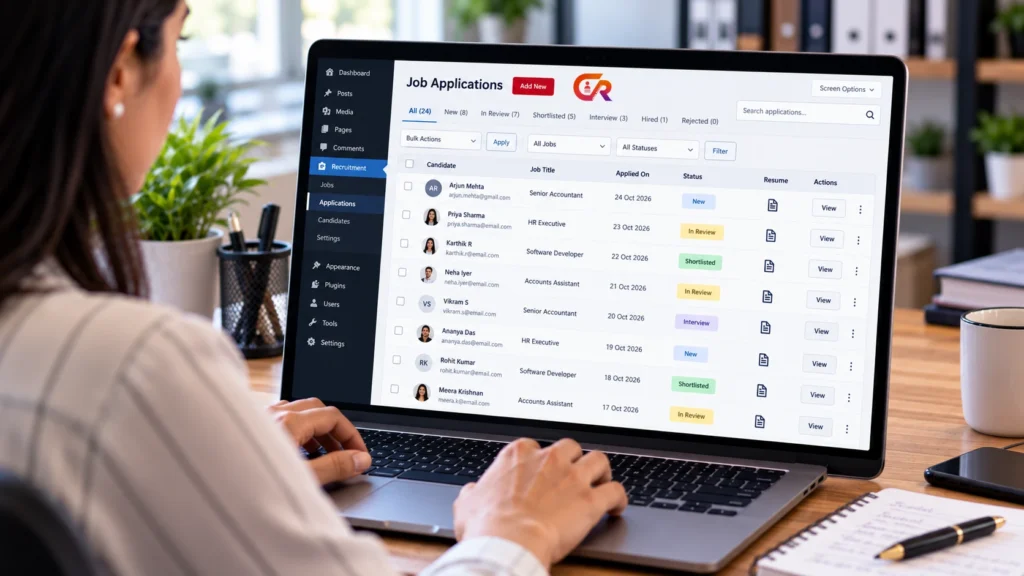
You can manage job applications in WordPress, but how well you can do it depends on how your application form and recruitment tools are set up. Email notifications alone leave you with scattered messages. A recruitment plugin can give you a centralised workflow that is far easier to manage than relying only on an inbox.
This guide covers the practical process from the moment an application arrives, through review and follow-up, to protecting candidate data and coping as volume grows. It explains the principles first and then shows where a plugin can help. WordPress job application management does not have to be complicated if you start with a clear routine.
Understand Where Your Applications Are Going
Before you can manage applications, you need to know where they actually land. The common setups are:
- Email-only notifications. Each submission arrives as a message. It is easy to start, but hard to search and easy to lose.
- Entries stored by a form plugin. Submissions are kept in WordPress, though review and tracking features vary by plugin.
- A recruitment plugin with an application record or Applications screen. Each application is stored and tied to a job.
- An external ATS connected to the website. The website collects the application and another system manages it.
These setups differ in visibility, searchability, follow-up and access control. An email notification is not necessarily a complete application record, because it may omit the resume, the job reference or both. If you want to review job applications online from one place, the setups that store each application give you far more to work with than email alone. If you are still choosing a form, our guide to creating a job application form in WordPress covers the options.
Set Up a Consistent Application Review Routine
A predictable routine matters more than any single feature. A WordPress recruitment workflow does not need to be elaborate, because a few consistent steps followed every time beat a sophisticated process that nobody follows. A workable one looks like this:
- Check for new submissions.
- Confirm which role each application is for.
- Review the information the candidate supplied.
- Check that the resume is present and opens.
- Record the outcome in the system you use.
- Decide the next action.
- Follow up where appropriate.
Use the same criteria for every candidate, based on the published requirements for the role. Decisions should rest on job-related information, not on irrelevant personal details, and a consistent routine makes that easier to demonstrate.
Review Candidate Details and Resumes
Good review habits protect both the candidate and the business:
- Confirm the application is for the vacancy you think it is.
- Compare qualifications with the published requirements.
- Open or download resumes only through authorised access.
- Keep notes factual and related to the job.
- Avoid making unnecessary copies of candidate files.
- Flag missing or unreadable attachments.
- Check that contact details look valid before you reply.
To manage resumes in WordPress safely, treat each file as confidential: open it, assess it, and do not forward it by email or save it to personal devices. Reviewing remains a human task. Do not assume that a plugin evaluates suitability for you unless a documented feature says it does, and even then a person should check the result.
Organize Applications by Job and Status
You need to know which vacancy each application belongs to and what action is waiting. Many teams use a simple set of stages. The table shows a general example, not the statuses of any particular plugin:
| Stage | Typical meaning | Typical next action |
|---|---|---|
| New | Received and not yet looked at | Check the details and resume |
| In review | Being assessed against the requirements | Decide whether to progress |
| Shortlisted | Selected to go forward | Arrange the next step |
| Interview | Interview planned or held | Record feedback |
| Decision pending | Waiting for a hiring decision | Confirm and communicate it |
| Hired or declined | Process finished for this candidate | Close the application, retain or delete data as policy requires |
For example, a company hiring an accountant and a developer at the same time will want to see the two sets of applications separately, so a reviewer is not comparing people who applied for different roles. The statuses and workflow you actually have depend on the plugin you choose. A small business can get far with a short, consistent convention that everyone follows, so avoid inventing many stages that nobody will keep up to date. Whatever convention you choose, write it down in a short document so new team members apply it the same way.
Use the WordPress Dashboard Effectively
To manage job applications in WordPress from the dashboard, treat it as the single place where applications are managed:
- Use a dedicated application-management screen if your plugin provides one.
- Limit access to the right recruiters, using WordPress roles and capabilities where your tools support them.
- Filter or search by the fields the plugin supports.
- Do not rely on browser tabs or email labels as your only record.
- Keep role and candidate information accurate.
- Record decisions in the system you use.
Menu names and screens differ between plugins and versions, so check what your installation actually shows instead of assuming a screen exists. Whether you call it a recruitment dashboard WordPress screen or simply an Applications list, it is only as useful as the habits around it.
Follow Up With Candidates Consistently
Candidates notice silence. A few habits make follow-up easier:
- Confirm receipt where your tools support it.
- Set internal targets for how quickly applications are reviewed.
- Give accurate updates.
- Avoid promising decision dates you cannot meet.
- Keep communication professional.
- Record relevant communication where the system allows it.
Remember that a receipt confirmation is not a shortlist notification or a hiring decision, and the wording of your messages should make that clear. A short, honest message that thanks the candidate and explains the next step is better than a long silence.
Protect Application Data and Resume Files
Applications contain personal data, so protect them deliberately:
- Assign appropriate user roles and permissions.
- Secure access to resume files.
- Use HTTPS and keep WordPress updated.
- Protect backups.
- Limit downloads and unnecessary copies.
- Define retention and deletion practices.
- Never share candidate records through public links or open documents.
Review who has access whenever someone joins or leaves the hiring team. Neither WordPress nor a plugin automatically makes your hiring process compliant with every privacy law. Consider the obligations that apply to your business and location.
Improve the Process as Application Volume Grows
Email and spreadsheets start to fail in recognisable ways:
- Several recruiters handle the same candidate.
- Nobody is sure who owns the follow-up.
- Duplicate records appear.
- Applications become hard to find.
- Status updates are inconsistent.
- Vacancies have different review priorities.
Practical responses are to standardise your review criteria, define who is responsible for what, keep one centralised application record and add workflow features only when you need them, one change at a time so the team can tell what helped. Our article on what an applicant tracking system is and whether you need one and our guide to what a recruitment ATS is explain when applicant tracking in WordPress or elsewhere becomes worthwhile.
Troubleshoot Common Application Management Problems
When something goes wrong, check the basics first. Plugin-specific behaviour should be confirmed in the plugin’s own documentation and settings.
- A recruiter did not receive an email. Check spam folders, the sender address, the site’s mail setup and whether the notification is enabled.
- An application looks incomplete. Check which fields were required and whether the form was submitted from an old cached page.
- A resume is missing or will not open. Check the permitted file types, size limits and who is allowed to open files.
- An application is linked to the wrong vacancy. Check how the form identifies the job and test it from each job page.
- Two recruiters are reviewing the same application. Agree who owns each vacancy and record that in your process.
- A candidate asks for an update. Check the application record and reply with accurate information.
- A filled vacancy still accepts submissions. Close or unpublish the listing, and check whether your form stops accepting applications after a closing date.
Avoid guessing at the cause of a problem on a live site. Reproduce it with a test application where you can, and keep a short log of recurring problems and their fixes so the next person does not start from scratch.
Where CMAA Recruit Fits
CMAA Recruit is a WordPress recruitment plugin for a company’s own careers site. In the Free version, jobs you publish collect applications through a form with resume upload, and each application is stored and linked to its job. The Applications screen lists everyone who applied: the application ID, the job applied for, the candidate’s name, the date, a link to view the resume and a delete action. Recruiters see only the applications for their own jobs, a Super User sees all of them, and candidates receive a confirmation email and a login-free status page.
This Free list is intentionally simple. It has no status column, filters or bulk actions, and it is not a candidate database or a Kanban pipeline. According to the product page, CMAA Recruit Pro adds a Kanban pipeline with a full application detail and status workflow, bulk actions, a candidates database, interview scheduling and analytics. Check the current feature list on the product page before you decide, because plans can change. You can read more in CMAA Recruit as a WordPress ATS for jobs, applications and hiring.
Bring job application review into your WordPress workflow
Explore how CMAA Recruit supports the move from a published job to a received and reviewable application.
Frequently Asked Questions
Can I see job applications in the WordPress dashboard?
It depends on your setup. A recruitment plugin can provide an Applications screen, a form plugin may store entries, and an email-only form shows nothing in the dashboard. Our guide to getting job applications on your website with WordPress covers the options.
Where are resumes stored in WordPress?
That depends on the form or plugin. Files may be kept in the uploads area, in a protected folder or elsewhere. Check how your tool stores them and who can open them.
Can I organize applications by job?
If your tool records which job each application is for, yes. A recruitment plugin typically does this, while a general form may need extra configuration.
Can several recruiters access applications?
Often yes, using WordPress users and roles, but the details depend on the plugin. Give each person access only to what they need.
Does WordPress automatically track applicant status?
No. WordPress core does not track applicant status. You need a recruitment plugin or another system that supports it.
When should a business use an ATS instead of email?
When applications become hard to find, several people are involved, or you need consistent records and follow-up. For a handful of applications, a clear email routine can be enough.
Final Takeaway
To manage job applications in WordPress well, every application needs a clear record, a responsible reviewer, an appropriate next action and controlled access to candidate data. Whatever tools you use, build those four things into your routine, and add features only when your volume makes them necessary.
Compare recruitment workflow features for your team
Compare the available Free and Pro capabilities against your application volume and workflow needs.

About CMAA Softwares
CMAA Softwares builds practical software for SMEs and professional firms, grown out of problems solved first inside CMAA Advisors' own payroll, compliance, and recruitment desks. CMAA Recruit is our recruitment ATS plugin for WordPress. Learn more about us.